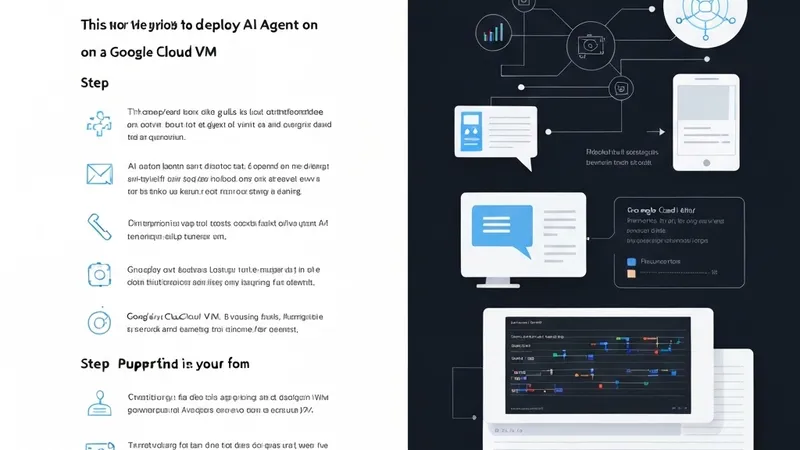
To ensure your AI agent operates 24/7 without interruption, hosting it on a cloud Virtual Machine (VM) is an ideal solution. This guide will walk you through setting up an AI agent on Google Cloud Platform (GCP), connecting it to Telegram, and maintaining its reliable operation.
Why Host on a VM?
Opting for a cloud VM over a personal computer for AI agent hosting offers several key advantages:
- Always-on Compute: VMs can run continuously, 24/7. GCP's free tier is often sufficient for personal projects.
- Static IP Option: Achieve a static public URL easily, for instance, via a Cloudflare tunnel.
- Full Environment Control: You gain complete control over the VM's operating system and configuration.
- No Vendor Lock-in: As it's essentially a Linux VM, migrating to other cloud providers remains straightforward.
This guide will demonstrate the setup process using an OpenClaw agent.
Prerequisites
- A Google Cloud account (free tier eligible).
- A Telegram account (for setting up a BotFather bot).
- An optional domain (Cloudflare tunnel can manage public URLs without one).
Step 1: Create the VM
1. Navigate to console.cloud.google.com
2. Go to Compute Engine → VM instances
3. Click Create Instance
Configuration Settings:
Name: openclaw-agent
Region: us-central1 (Iowa) — free tier eligible
Zone: us-central1-a
Machine type: f1-micro (1 vCPU, 0.6 GB — free tier eligible)
Boot disk: Debian 12 (Bookworm)
Boot disk size: 10 GB
Firewall: ✅ Allow HTTP traffic, ✅ Allow HTTPS traffic
Cost: With the free tier, this configuration runs at $0.00/month. After the free trial ends, the cost is approximately $7/month.
Click Create and allow about 60 seconds for the VM to boot.
Step 2: SSH Into the VM
You can connect to your VM using one of two methods:
1. From your local terminal: Ensure the Google Cloud SDK is installed. Execute the following command:
gcloud compute ssh openclaw-agent --zone=us-central1-a2. Using the Google Cloud Console's SSH button: This browser-based option requires no local key setup.
Step 3: Install Node.js 18+
Once connected to your VM, proceed with Node.js installation:
# Update packages
sudo apt update && sudo apt upgrade -y

# Install nvm (Node Version Manager)
curl -o- https://raw.githubusercontent.com/nvm-sh/nvm/v0.39.7/install.sh | bash

# Reload shell to apply nvm changes
export NVM_DIR="$HOME/.nvm"
[ -s "$NVM_DIR/nvm.sh" ] && \. "$NVM_DIR/nvm.sh"

# Install Node.js 20 (LTS)
nvm install 20
nvm use 20
node --version  # Verify installation, should show v20.x.x

# Make Node.js 20 the default version
nvm alias default 20
Step 4: Install OpenClaw
After Node.js is installed, proceed to install OpenClaw globally:
# Install OpenClaw globally
npm install -g openclaw

# Verify installation
openclaw --version

# Initialize OpenClaw (follow the interactive prompts)
openclaw init
During the initialization process, you will be prompted to:
- Create an account at openclaw.ai (a free tier is available).
- Connect your Telegram bot token (obtained in Step 5).
- Set your preferred default AI model (e.g., MiniMax, Anthropic, etc.).
Step 5: Create Your Telegram Bot
1. Open Telegram and search for BotFather.
2. Send the command /newbot.
3. Follow the prompts to give your bot a name and a username.
4. Copy the API token provided (it will look similar to 123456789:ABCdefGhIJKlmNoPQRsTUVwxyZ). Keep this token secure, as you'll add it to your OpenClaw configuration.
Step 6: Configure Environment Variables
For security best practices, it's recommended to store sensitive information, such as API tokens, in an .env file. This practice helps manage secrets for your OpenClaw agent effectively.
# Create a .env file for secrets management