Developers frequently interacting with AI coding assistants like Claude Code or Codex within a tmux environment often face a significant challenge: persistent context switching. This recurring need to switch focus between the code editor and the terminal to provide instructions or respond to AI prompts, such as "1. Yes / 2. No," repeatedly breaks concentration and workflow. Managing multiple parallel AI sessions further complicates tracking their states, leading to considerable cognitive load and reduced productivity.
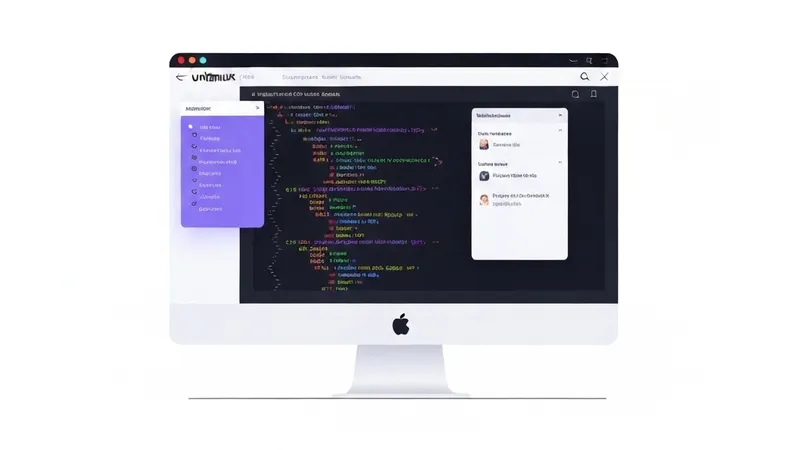
To address these issues, a new desktop application named unitmux has been developed. unitmux is designed to streamline interactions with AI assistants running in tmux by providing a floating, always-on-top window. This eliminates the necessity of switching focus to the terminal, allowing developers to send instructions to their AI directly without interrupting their primary coding workflow. The application also supports panes running the generic ai wrapper command in addition to specific Claude and Codex sessions.
Installation is straightforward via Homebrew:
brew install --cask yugo-ibuki/tap/unitmuxKey Features of unitmux:
One-Click and Keyboard Responses: unitmux automatically detects and displays clickable buttons for AI-presented choices. This includes numbered lists, marker-prefixed choices (e.g., ❯, ›, >, ●), colon-separated inline options (e.g., "1: staging 2: production"), and multi-line permission prompts. Users can also respond instantly using keyboard shortcuts (Ctrl+1 through Ctrl+9), eliminating the micro-annoyance of switching to the terminal for single-character input. The system intelligently filters out session rating feedback and CLI footers to prevent false positives. Improved Codex support includes detection of letter choices and separate heuristics tailored for English and Japanese choice contexts.
Global Shortcut Access: A customizable global shortcut (default Cmd+Shift+H) allows users to instantly bring unitmux into focus from any application. The focus lands directly on the text input area, enabling immediate typing and command sending with Cmd+Enter. This makes it seamless to instruct the AI while referencing documentation or other applications.
At-a-Glance Session Status: All active panes are presented as tabs within unitmux, each featuring a colored dot indicating its current status: green for accepting input, orange for processing, and gray for waiting for a response or displaying choices. Additionally, a small badge (CC for Claude Code, CX for Codex) indicates the specific AI tool associated with each pane, simplifying the management of multiple parallel AI sessions.